


Dropmatic
Drag, drop, done!
File chores in one move. How many times have you renamed, resized and moved screenshots by hand? With Dropmatic you set up a flow once, and after that you just drag your files to it. The app lives in your menu bar and takes care of the rest: new name, new format, right folder.
Why Dropmatic?
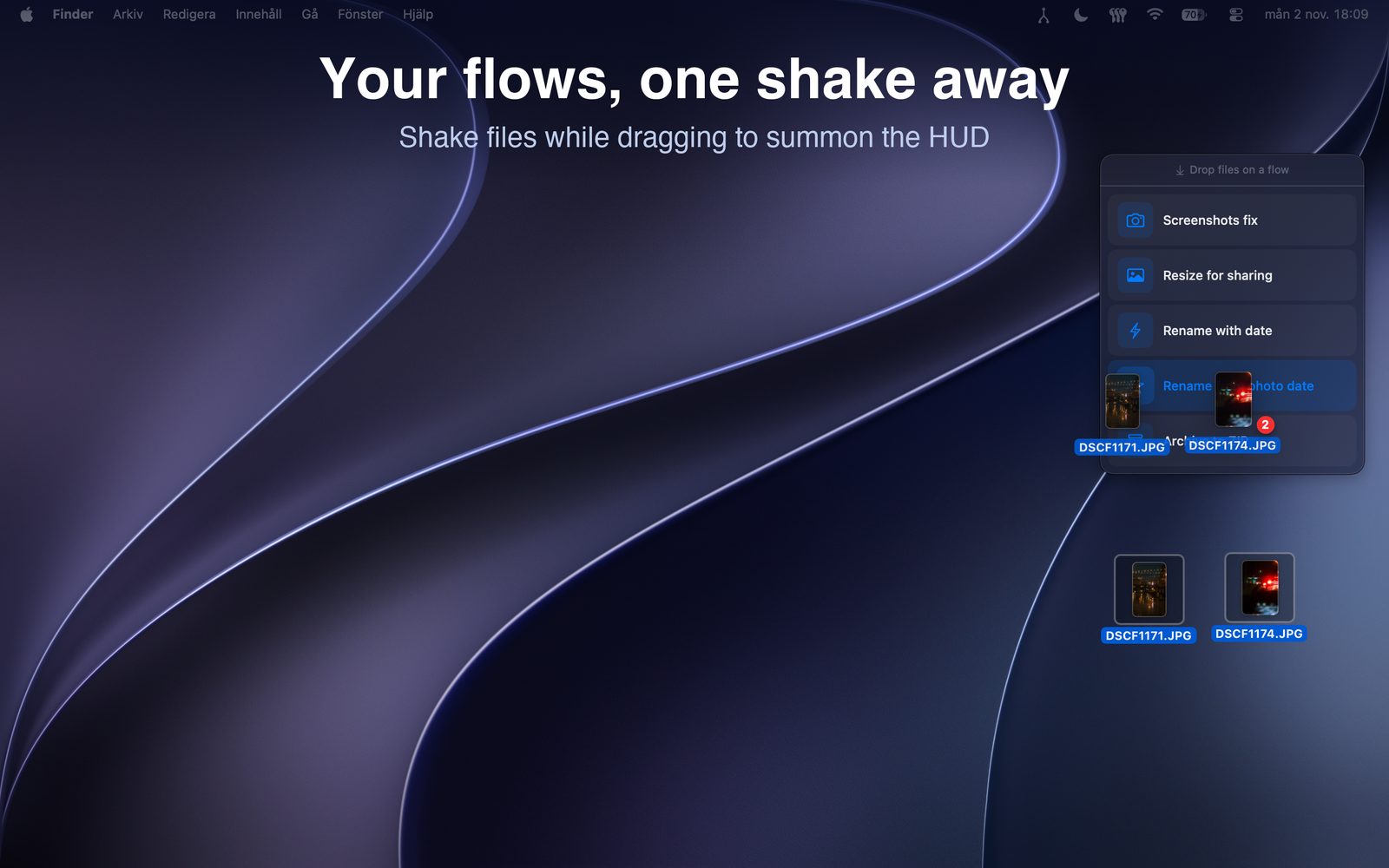
Shake to bring up your flows
Shake the files while you drag, or hold them over the menu bar icon. Your flows pop up – drop on one and it runs.
Several steps in one go
A flow chains actions together: rename, convert, resize and move to a folder, all from a single drop.
Safe to try
Nothing is overwritten – a number is added if a name is taken. And you can undo the last flow from the menu.
Features
Rename
- Rename with
{original},{date}and{counter} - Rename photos by the date they were taken (EXIF)
- Add text before or after the name
- Clean up file names: lowercase, å ä ö to a a o, spaces to underscores
Move and tidy
- Move to a folder, optionally into a subfolder for each month
- Copy to a folder
- Compress to ZIP
- Move to Trash
- Copy the file name or full path
Images
- Convert between PNG and JPG, with adjustable quality
- Resize to 640, 1280 or 1920 px, or a width of your own
- Keep the original or replace it, and strip metadata if you like
- Rotate 90° either way or 180°
Your way
- Place the flows next to the pointer or in six other spots
- Adjust how hard you need to shake, or turn shaking off
- Choose your menu bar icon and launch at login
How it works
- Build a flow.
Open Dropmatic from the menu bar, name your flow and add the actions in the order you want.
- Drag your files.
Shake them while you drag, or hold them over the Dropmatic icon in the menu bar.
- Drop on a flow.
Dropmatic runs the actions in order and tells you when it's done.
Requirements
- Mac with Apple silicon or Intel
- macOS 14 Sonoma or later
Questions? See support and frequently asked questions.